Studio online - media pool readyRender queue idle
Multicam

Multicam editing in the browser: sync the angles and cut live

A multicam edit is only as good as its sync. Once the angles share a timeline, the work becomes a live switching exercise: watch the performance, choose the angle and let the cut build itself. The browser studio keeps that sequence editable and the source audio attached to the picture.

View pricing
  • Sync angles by timecode, waveform or a marker
  • Switch cameras live and refine the cut afterwards
  • Keep source audio and camera audio on the same timeline
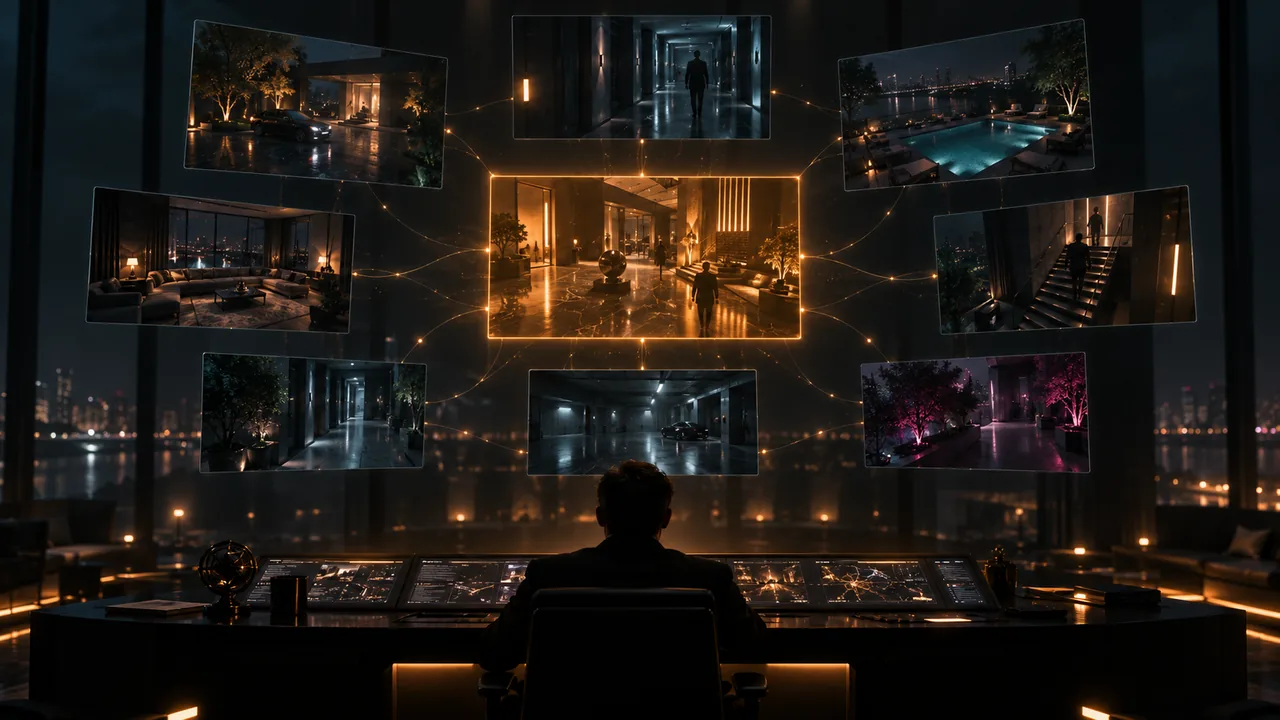
A grid of camera angles floating above a dark control room, one angle highlighted in amber
Sync

Choose the sync method the shoot actually gives you

Timecode is the cleanest route when the cameras shared a clock. Waveform sync is the practical fallback for a two camera interview recorded on separate cards. A visual marker is the last resort, but it is still better than guessing the offset by eye. Sync the whole clip first, then check the first and last minute for drift.

  • Timecode sync when the cameras were jammed or driven by one recorder
  • Waveform sync when the same room sound appears on every angle
  • Marker sync when there is a clapper or a deliberate visual event
  • Check lip sync at the start and end of a long take
Build the sequence

Create the multicam clip, then cut from the viewer

Select the synced angles and build a multicam clip from them. The viewer becomes a set of camera feeds; the timeline records which angle is live at each moment. Start with the performance and switch for reaction, detail or a new piece of information, not on a fixed rhythm.

  • Name the angles before the edit so the viewer stays readable
  • Play the take once without cutting to learn the performance
  • Switch for a reason: reaction, emphasis, continuity or a new detail
  • Use the audio channel that actually sounds best, not the active camera by default
Refine

Use the live pass as a first cut, then make it precise

Live switching is an assembly tool. After the first pass, trim the cuts frame by frame, fix an angle that reveals a boom or a camera operator, and add cutaways where the multicam angle does not carry the moment. The recorded angle changes remain editable, so changing the cut does not mean rebuilding the sync.

  • Review the first pass at normal speed before touching individual cuts
  • Fix angles that reveal equipment or break the eyeline
  • Add separate B-roll where no camera angle solves the problem
  • Keep the sync clip intact for later revisions
Scale

Make a long session manageable in a browser

Four camera angles of a full interview can be heavier than a single timeline. Proxies, a stable connection and a clear sync plan keep the session workable. If the shoot has more angles than the story needs, choose the useful feeds before building the multicam clip instead of carrying every camera through the edit.

  • Generate proxies before a long multicam session
  • Keep only the angles that add information or a reaction
  • Split the recording into reels when a single sequence becomes unwieldy
  • Leave the project in a state a second editor can understand
At a glance

Multicam at a glance

The decisions that make a multi-angle edit predictable.

SyncTimecode, waveform or a visual marker
AnglesKeep the feeds that add information or a reaction
CuttingLive switching, then frame-level refinement
AudioChoose the best source track independently of the active angle
PlaybackProxies and a stable connection for long sessions
DeliveryOne timeline can still produce wide and vertical versions
Help

Frequently asked questions

Multicam questions that come up before a first render.

Can I edit multicam footage in the browser?

Yes. The studio supports multicam sync and angle switching in the timeline. The practical limit is the weight of the source media, so proxies and a stable connection matter on a long interview or event.

What if the cameras have no timecode?

Use waveform sync when all angles recorded the same room sound, or place a visual marker on every angle and sync against that. Check the result at the start and end of the recording before committing to the edit.

Can I change the audio without changing the camera?

Yes. Choose the source audio independently of the active angle. A clean recorder mix or a lavalier track is often better than the camera microphone that belongs to the selected picture.

Can I add another camera after building the multicam clip?

Plan the angle set before the live pass if you can. Adding or replacing a feed after the cut may require rebuilding the multicam clip or patching the new angle manually, depending on the current studio build.

Why does multicam playback feel slow?

Multiple high resolution feeds put more pressure on decode and network throughput. Generate proxies, close other heavy tabs and keep the connection stable. A long session benefits from splitting the recording into manageable reels.

Does multicam work for vertical delivery?

The angle switch is independent of the delivery crop, but framing still changes. Check each angle inside the vertical safe area and reframe shots that lose the subject when the sides are removed.

Keep reading

Where this fits in the workflow

The studio is one project with several pages. These are the pages that usually come before and after this one.

Ready when you are

Sync the angles and cut the take

Build the multicam clip, record the live pass and refine the cut without leaving the browser project.

Read the editing page
  • No install, no licence server
  • Google sign in, projects in the cloud
  • Cancel anytime
Multicam Editing Online | DaVinci Resolve