Studio online - media pool readyRender queue idle
Edit page

Online editor for multi track video editing in the browser

The Edit page is a full multi track timeline that opens in Chrome. Ingest a card, assemble on the Cut page, trim on the Edit page, and every clip, marker and speed ramp is still where you left it the next time you open the project on any machine.

View pricing
  • No install, runs in Chrome or Edge
  • Multicam sync by timecode or waveform
  • Proxy modes keep 8K footage playable
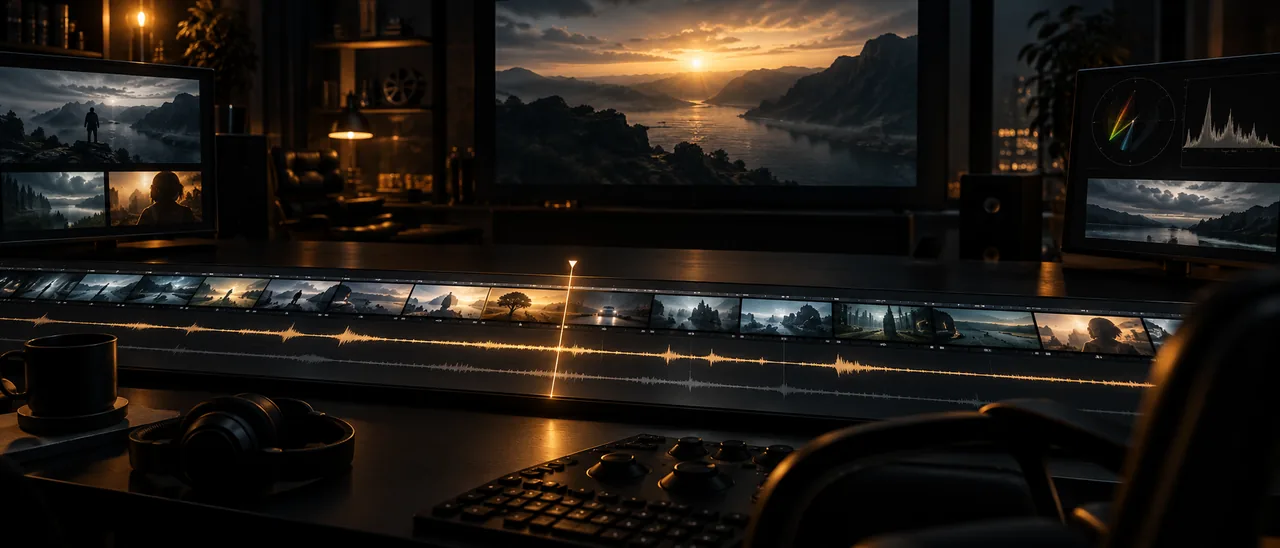
Multi track editing timeline in the DaVinci Resolve online editor
Assembly

Cut page assembly that keeps up with the shoot

Assembly should not be the slowest part of an edit day. The Cut page plays the whole card back to back, lets you mark in and out with the keyboard and appends clips to the timeline without building bins first.

  • Source tape scrubs an entire card as one continuous reel
  • Append and ripple overwrite edits with keyboard only workflows
  • Sync bins group clips by timecode, waveform or camera roll
  • Smart bins filter media by resolution, frame rate, codec or flag
Trim and refine

Trim, roll and slip without losing sync

Once the story is in place, the Edit page gives you the trim tools a long form cut needs. Audio and video stay linked until you deliberately break them, and every trim is non destructive.

  • Ripple, roll, slip and slide trims with dynamic trim previews
  • Linked clips with per channel audio enable and disable
  • Markers, flags and an edit index that jumps between notes
  • Adjustment clips for sequence wide looks and fixes
Multicam

Multicam sync and angle switching in the timeline

Drop every camera into a multicam clip, sync it once and switch angles in the viewer while the timeline records the cut. Each angle keeps its own colour and audio treatment.

  • Sync by timecode, waveform or markers across the shoot
  • Switch angles live and trim the resulting cuts afterwards
  • Audio follow video, or hold one camera feed for the whole take
Proxy and portability

Proxy playback and projects that follow you

Heavy media never blocks the edit. Generate proxies once and the timeline uses them automatically, while the original camera files stay untouched for the final render.

  • Proxy and optimised media modes for 6K and 8K camera files
  • Render cache for effects heavy sequences
  • Media pool, timeline, markers and versions live in the cloud project
  • Hand the same project to the desktop studio without rebuilding the edit
Help

Frequently asked questions

Edit page questions that come up before a first render.

Do I need to install an editor to use this?

No. The Edit page runs in Chrome, Edge and other current Chromium browsers. Sign in with Google, point the media pool at your footage and the timeline opens in the browser.

Can two editors work on the same project?

Shared media pools and project versions are part of the Studio plan, so a second editor can open the same sequence while you keep your own version of it.

Which formats can I bring into the timeline?

Common camera and delivery formats including H.264, H.265, ProRes and DNxHR, plus stills and audio files. Generate proxies for anything heavier than your browser can play smoothly.

How do proxies work in the browser?

Proxy generation runs in the render queue. When the proxies are ready the viewer switches automatically, and delivery still renders from the original media.

Does the Edit page share the timeline with Colour, Fusion and Fairlight?

Yes. There is one timeline per sequence. The Edit, Colour, Fusion and Fairlight pages are different views of the same project, so nothing has to be exported between steps.

Ready when you are

Start cutting in the browser

Sign in with Google, drop a card of footage into the media pool and the Cut page is already waiting for the first clip.

See the colour page
  • No install, no licence server
  • Google sign in, projects in the cloud
  • Cancel anytime
Online Editor | Edit Video in the Browser | DaVinci Resolve