Studio online - media pool readyRender queue idle
AI tools

AI video editing tools, built into the timeline

AI is most useful when it removes a tedious pass, not when it takes over the edit. The studio puts neural tools where the work already happens: a mask on a moving subject, an object that has to disappear, a vertical reframe or an upscale before delivery.

View pricing
  • Magic mask follows people and objects through a shot
  • Object removal patches a moving frame with tracked detail
  • Super scale and smart reframe finish the version
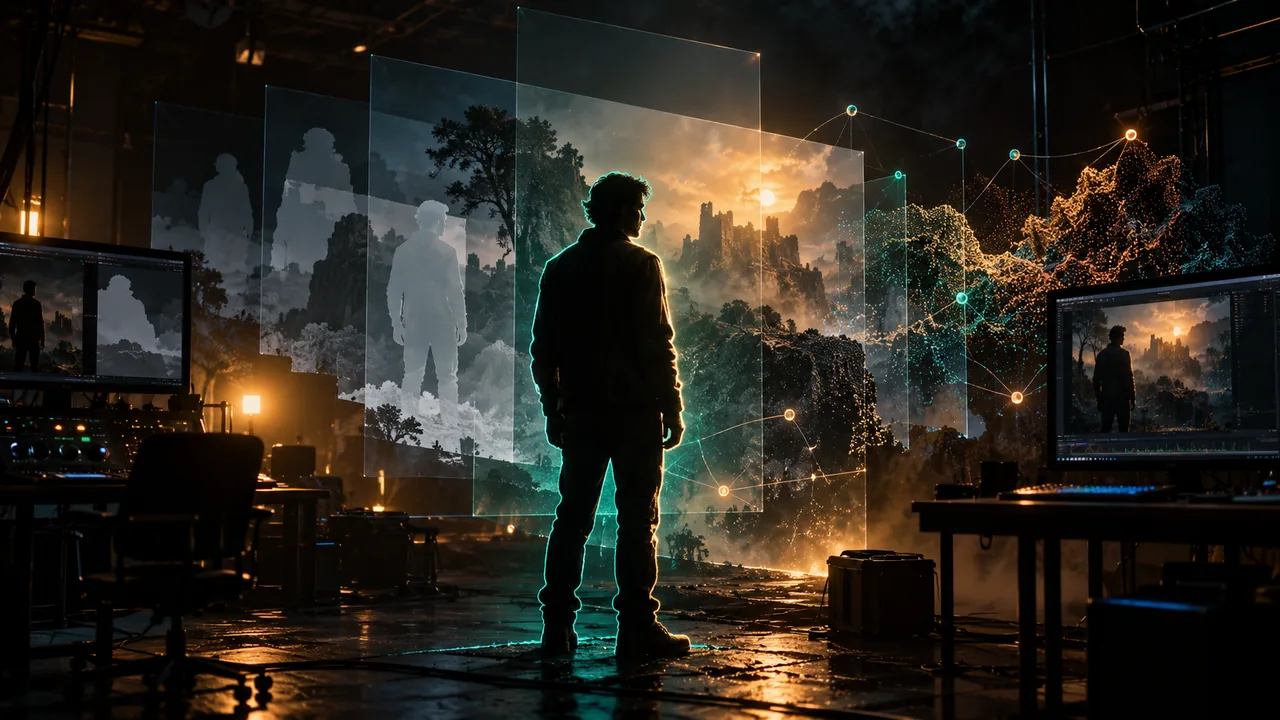
A glowing human silhouette with a precise matte and layered depth planes in a dark compositing room
Masking

A matte that follows the subject, not the frame

Magic mask is the first tool most finishing jobs reach for. Paint over a person or object, let the tracker carry the shape and refine the edges where the subject meets the background. It is faster than keyframing a window every few frames, but it still needs a human check on hair, motion blur and reflective edges.

  • Follow a person or object through camera movement and focus changes
  • Use the mask for grades, background work, depth effects or removal
  • Check the matte on a wipe against the original before committing
  • Send difficult edges to Fusion for roto and paint
Removal

Object removal that borrows detail from the frame around it

Object removal is not a magic eraser for every shot. It works best when the background has texture or repeating detail and the hidden area stays small enough for tracked patching. A moving camera, a clean sky and a subject crossing the removed area are all harder than a locked-off plate.

  • Paint a rough region around the object and let the tracker follow it
  • Use clean frames before and after the object enters the scene
  • Rebuild complex occlusion in Fusion instead of forcing the pass
  • Review the patch at full size and in motion, not on a single still
Reframe and upscale

Smart reframe and super scale, with realistic limits

Smart reframe turns a wide sequence into a vertical or square version by following the subject and keeping the action inside a safe area. Super scale adds detail when a source is smaller than the delivery format, but it cannot recover information that was never recorded. Both tools are finishing aids, not a substitute for the right camera settings.

  • Keep the original cut and generate a separate vertical version
  • Review the reframe shot by shot where the subject moves across frame
  • Use super scale on archive, phone or lower resolution inserts
  • Check noise and sharpening before adding a second enhancement pass
Cost and control

The plan decides which neural passes are available

Neural tools run on the studio servers, so the heavy passes draw on the render credits that come with the plan. Starter keeps the focus on the Cut, Edit and Colour pages; Pro and Studio open Fusion, the magic mask and the heavier finishing tools. Check the shot list before running a pass over an entire timeline.

  • Batch the shots that actually need a neural pass
  • Test one shot before queuing the whole sequence
  • Leave headroom in the credit budget for delivery
  • Keep a non-AI fallback for shots the mask cannot hold
At a glance

AI tools at a glance

What each tool is good at, and where the limits show up.

Magic maskPeople and objects; editable matte, plan dependent
Object removalSmall moving objects with usable surrounding detail
Depth mapDefocus, atmosphere and separation without a second camera
Super scaleUpscaling archive, phone and lower resolution inserts
Smart reframeVertical and square versions from a wide timeline
Render costServer side neural passes draw on plan credits
Help

Frequently asked questions

AI tools questions that come up before a first render.

Are the AI tools included in every plan?

No. Starter concentrates on Cut, Edit and Colour. Fusion, magic mask and the heavier neural passes are part of the Pro and Studio plans. The plan comparison on the Studio page lists the current split.

Do the AI tools run on my computer?

The neural passes run on the studio servers, which is why a normal laptop can use them. The trade off is that they need a connection and draw on render credits.

Can magic mask remove a background without a green screen?

Often, yes: it can isolate a subject and drive a background replacement or grade. Hair, motion blur and transparent edges still need a manual check. The remove background page walks through that workflow.

Is super scale a replacement for shooting in 4K?

No. It can make a lower resolution source hold up better in a larger delivery, but it cannot restore detail that was never captured. Use it for archive, inserts and phone footage, not as a reason to shoot below the delivery resolution.

Why does an AI tool look greyed out?

The usual reasons are the plan level, an unavailable server side model or a clip the current tool cannot analyse. Check the plan first, then try a short section of the clip before queuing the full timeline.

Can I edit the result after the AI pass?

Yes. The mask, reframe and removal are part of the project, not a baked export. Refine the result on the timeline and re-render the shot after the change.

Keep reading

Where this fits in the workflow

The studio is one project with several pages. These are the pages that usually come before and after this one.

Ready when you are

Put the AI pass where the work is

Start with one shot, check the matte and let the timeline carry the result into colour, sound and delivery.

See the plugin catalogue
  • No install, no licence server
  • Google sign in, projects in the cloud
  • Cancel anytime
DaVinci Resolve AI Tools | Mask & Reframe