Studio online - media pool readyRender queue idle
Vertical video

Vertical video in a landscape timeline: shorts and reels without a second project

Most vertical clips start life as part of something longer. The trick is to cut them from the same project instead of spinning up a parallel edit: duplicate the timeline, reframe, and keep one story in one place.

View pricing
  • One project serves landscape and vertical cuts
  • Safe areas keep captions clear of app UI
  • Export presets saved per platform format
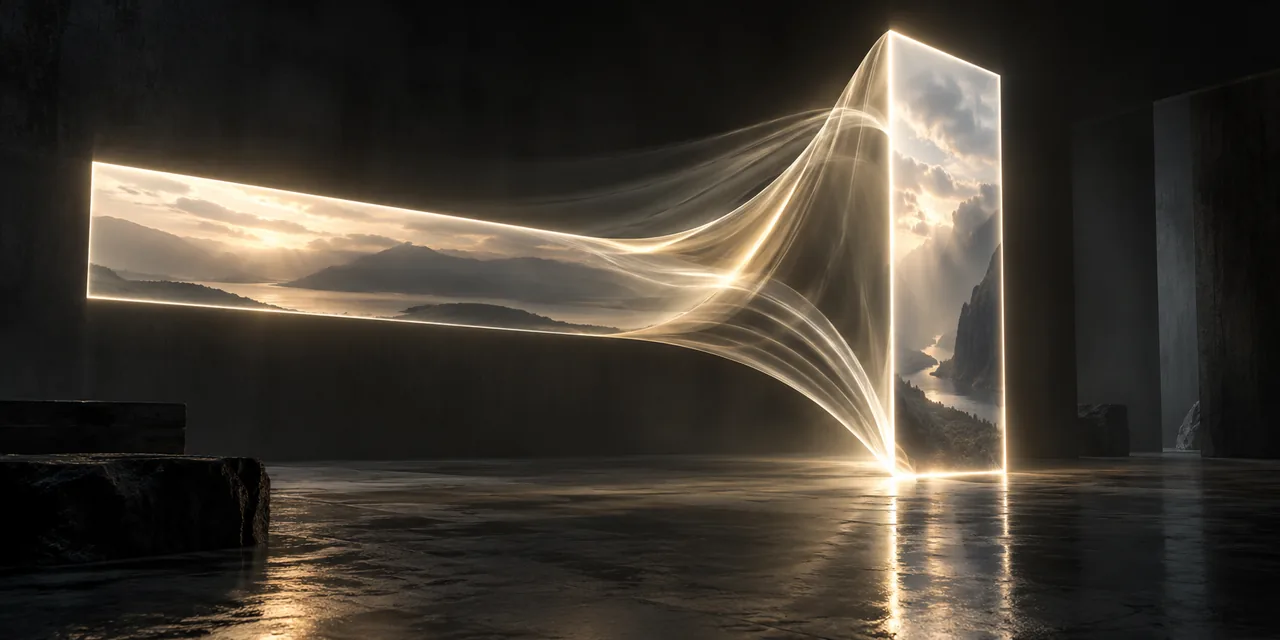
A wide frame of light folding into a tall vertical frame in a dark room
Reframe

From wide shot to 9:16 without losing the subject

A vertical cut is mostly an attention problem: keep the speaker centred, crop the empty space, and move the frame when the action does. The reframe pass happens on a duplicated timeline, so the landscape master stays untouched.

  • Duplicate the timeline for the vertical cut
  • Keyframe the frame moves on interviews
  • Stack two angles when both speakers matter
  • Blur or fill the sides for full-frame footage
Safe areas

Safe areas for captions, handles and app UI

Every platform reserves the edges of a vertical frame for its own interface, and captions that ignore that get hidden behind buttons. Keep a margin guide on and place text well inside it.

  • Keep captions clear of the top and bottom UI zones
  • Title-safe margins for lower thirds and handles
  • Captions burned in for silent autoplay
  • Check a phone-shaped preview before export
Pacing

Vertical pacing: faster cuts, bigger captions

Vertical viewing is impatient: cuts come in tighter, captions are larger, and every second of throat clearing taxes the completion rate. The timeline tools are the same; the rhythm is not.

  • Front-load the hook in the first two seconds
  • Trim pauses harder than in long form
  • One idea per caption card
  • Loop the ending back into the opening
Export

One export recipe for every short-form platform

Short-form platforms are forgiving on codec and strict on aspect: 1080x1920, a healthy bitrate, loudness near minus fourteen LUFS, and the same file works across shorts, reels and TikTok.

  • A 1080x1920 export preset saved once
  • Loudness at minus fourteen LUFS integrated
  • A high-bitrate master kept for re-uploads
  • A cover frame still exported for the feed
Help

Frequently asked questions

Vertical video questions that come up before a first render.

Should vertical cuts live in the same project as the long video?

Yes. Duplicate the timeline inside the project: the vertical cut inherits the media, the grade and the audio mix, and the landscape master stays untouched.

How do I reframe without tracking every shot?

For most footage a generous crop and two or three keyframes are enough. Talking-head interviews reward tracking; b-roll usually holds still.

What export settings do shorts and reels use?

1080x1920 at 25 or 30 frames, H.264 at a healthy bitrate, loudness near minus fourteen LUFS integrated. Saved as a preset, the format question disappears from every future edit.

Do captions have to be burned in?

For silent autoplay, yes. Burned-in captions respect your safe-area margins, and the caption source can stay as a subtitle track if another upload needs it.

Ready when you are

Cut a vertical version in the same project

Open the studio, duplicate the timeline and reframe; the landscape edit is still exactly where you left it.

See the YouTube workflow
  • No install, no licence server
  • Google sign in, projects in the cloud
  • Cancel anytime
Vertical Video Editor Online | Shorts & Reels in the Browser