Studio online - media pool readyRender queue idle
LUTs

DaVinci Resolve LUTs: what they are and how to use them well

A LUT is a lookup table: colour in, colour out, one mapping step. Understanding that sentence well is the difference between a useful shortcut and footage that looks washed out because two conversions were stacked by accident.

View pricing
  • Technical conversions and creative looks are different jobs
  • Apply, check the scopes, then grade on top
  • An organised library beats a folder of downloads
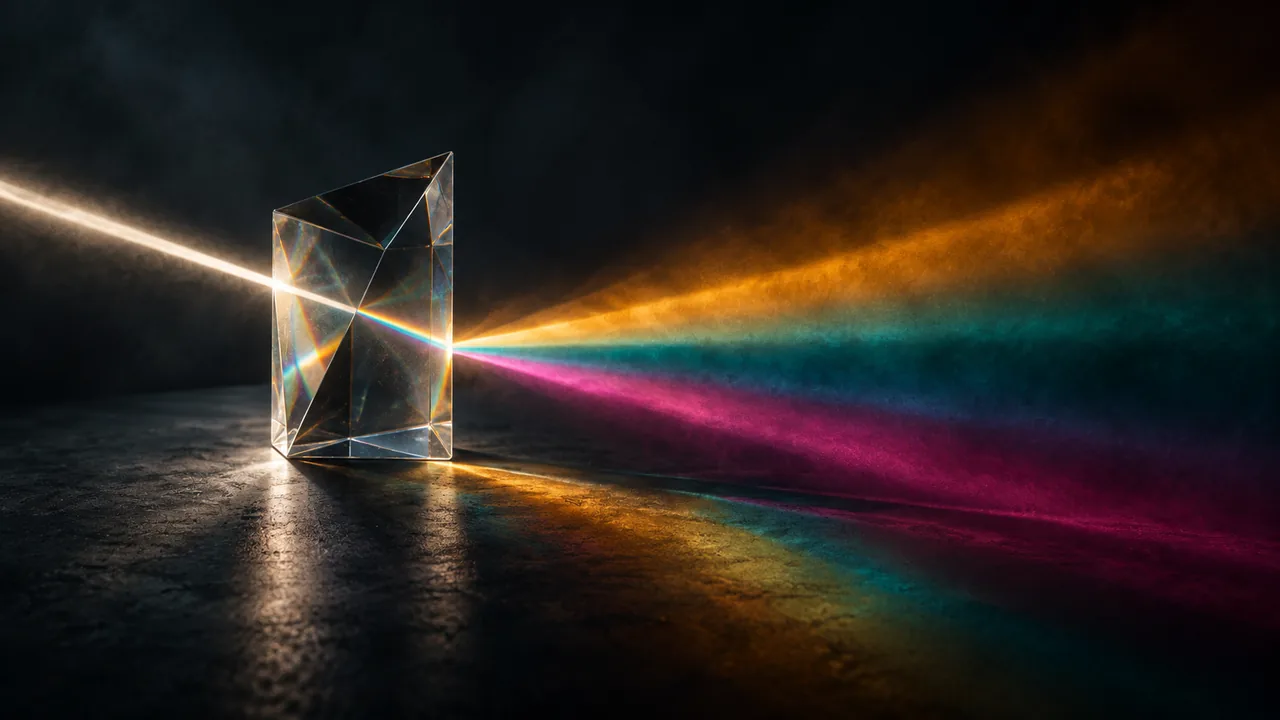
A glass prism on a matte black surface splitting a beam of light into wide ribbons of amber, teal and magenta
What a LUT is

A map from colour in to colour out

Camera Log footage looks flat because it is; a technical LUT maps that footage into the standard viewing space. A creative LUT maps a look: teal shadows, warm highlights, a filmic curve. Both are just a table, which is why they are cheap to apply and easy to misuse.

  • Technical LUTs: Log to Rec.709, camera and monitoring conversions
  • Creative LUTs: a fixed look, applied for consistency or speed
  • Both ship as .cube files; neither interacts with the project on its own
Applying one

Right place in the chain, right amount

Conversions belong early in the node chain, before the grade; looks belong late, after the balance is right. Applying either at the wrong point, or at full strength when a partial would do, is where most LUT disappointment comes from.

  • Convert first: Log footage lands in Rec.709 before any creative step
  • Apply looks after primary balance, so the grade sits under the look
  • Dial the key output down when a look is too loud out of the box
  • Check the scopes after every LUT: clipping is easy to hide behind a look
The library

A library that stays organised

LUT collections grow quietly until nobody knows which file does what. Naming by source and purpose, camera conversions in one place and looks in another, turns a folder of downloads into something a whole team can use.

  • Name by camera, space and intent: the future you will thank you
  • Keep vendor conversions separate from purchased and homemade looks
  • Free sources are fine: camera makers ship conversions, marketplaces ship looks
  • Build your own from a grade you like and export it as a .cube
Pitfalls

The four mistakes that cover most cases

Almost every LUT problem is one of four: the footage was already converted, the LUT expects a different input space, the look is fighting a stubborn grade, or the judgement is being made on an uncalibrated display.

  • Double conversion: check whether the clip is already Rec.709
  • Wrong input space: a Log LUT on converted footage goes dark and muddy
  • A look cannot rescue exposure; grade first and let the LUT sit on top
  • Trust the scopes: a display that flatters everything hides the problems
Help

Frequently asked questions

LUTs questions that come up before a first render.

Where do I get LUTs for the studio?

Three sources: camera vendors ship free conversion LUTs for their Log formats, marketplaces sell creative packs, and you can export a finished grade as your own .cube for reuse across projects.

Why does a LUT make my footage washed out?

Nearly always an input space mismatch: the LUT expects Log and the footage is already Rec.709, or the reverse. Check what the clip actually is before blaming the look.

Do I have to use LUTs at all?

No. A node grade built by hand is often cleaner and always more flexible. LUTs earn their place as conversions and as consistency tools across a series or a team.

Can I save a grade as a LUT?

Yes: export the grade as a .cube and it becomes a reusable look. That is the honest way to keep a house style consistent across editors without sharing project files.

Ready when you are

Grade the next shot the right way round

Convert first, look second, scopes throughout; the colour page has the full chain the LUT sits inside.

Read the colour page
  • No install, no licence server
  • Google sign in, projects in the cloud
  • Cancel anytime
DaVinci Resolve LUTs | How to Apply and Use LUTs